iPhone
On the App StoreiOS 17 or later
Install the iPhone app from the App Store.


For the computer on your TV
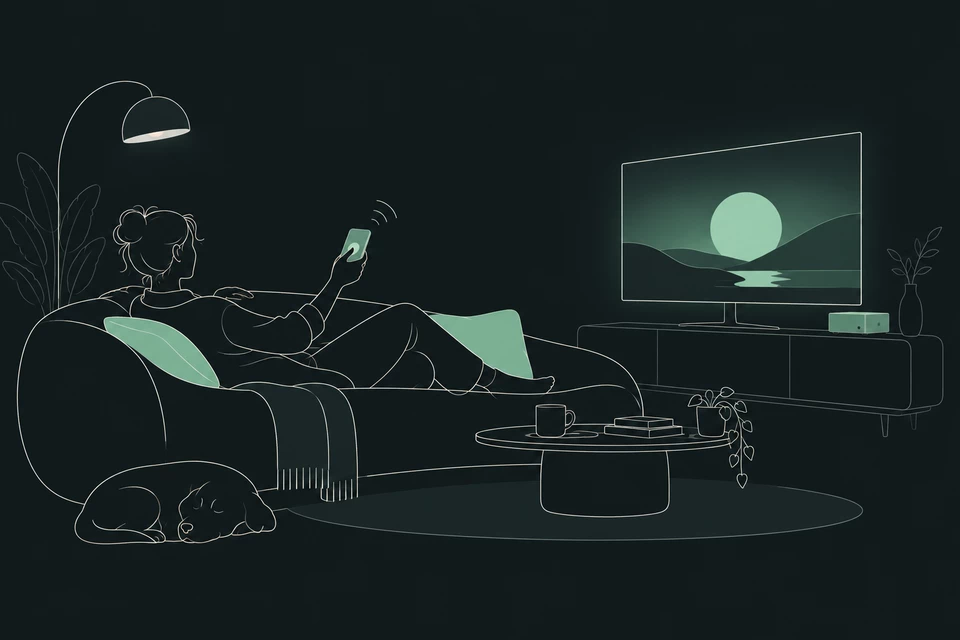
Sofatap turns your iPhone or Android phone into a touchpad and a voice-and-text keyboard for the Windows, Mac or Linux computer connected to your TV. The picture stays on the big screen. You stay on the sofa.
Open source · Windows, Mac and Linux
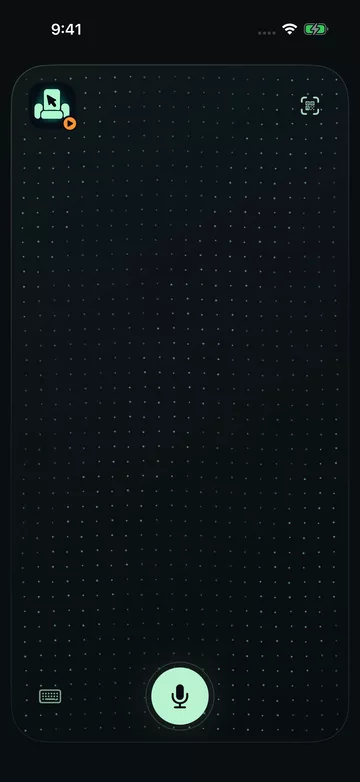
One large rounded touch surface, with the keyboard and microphone close at hand. A calm field of mint dots bends under your finger, and taps send out a ripple.
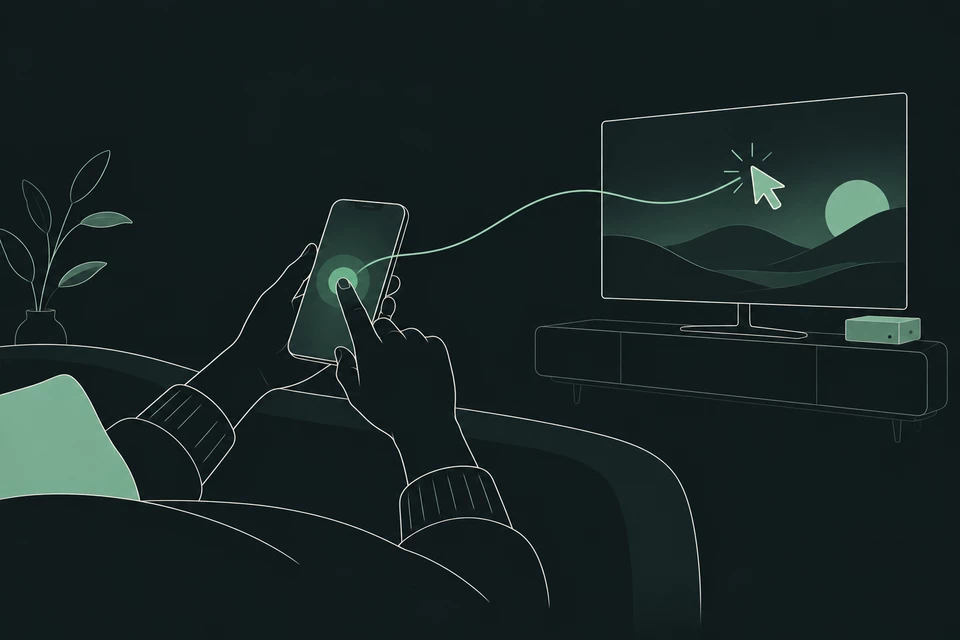
Move over the phone screen and the pointer moves on the TV. Click or tap once to select a film. Double-click or double-tap for a right click, then choose Play. To search, click the search box on the TV, tap the keyboard button on the phone, type, then tap Send. This search box uses the draft-and-Send flow.
Keyboard: focus the phone screen, move the pointer with the arrow keys, press Enter to click and Shift+F10 or the Menu key to right-click. Escape closes the menu.
The TV shows a computer’s film library with nine films. The result of each gesture is announced in the status line.
Ready. The pointer is on the TV.
Voice and text
Search for a film, fill in a form or reply to a message. In supported fields, what you type or say reaches the computer as you go; elsewhere, you check a draft on the phone and then send it.
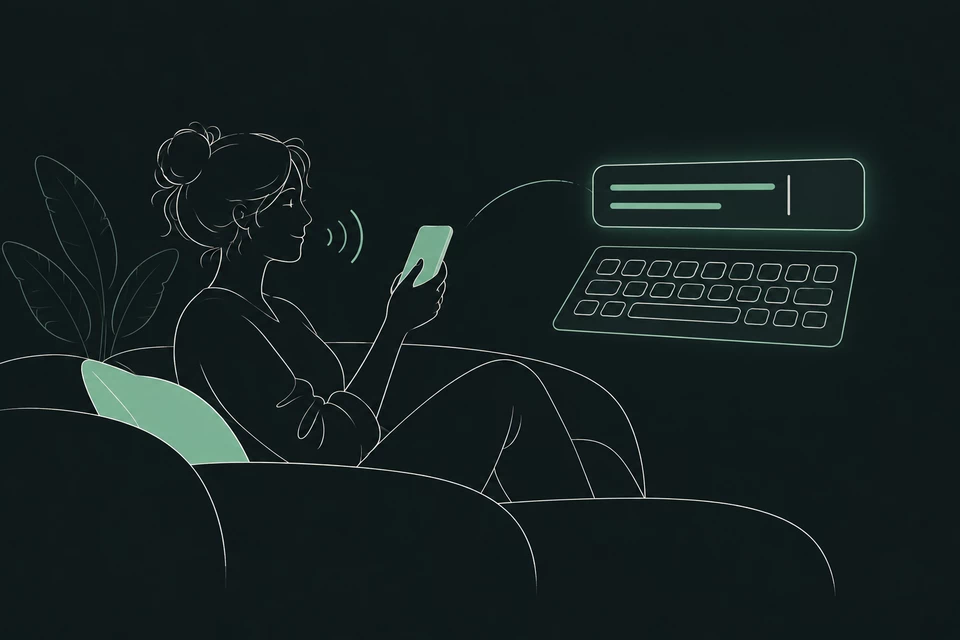
It only listens after you start dictation. When your iPhone and language support it, speech is recognized on the phone itself, and Sofatap doesn’t upload your audio. On Android, dictation uses the phone’s installed speech service, which decides how your audio is handled.
Supported text fields on Windows and Mac update live as you type or dictate; other fields, Linux and older receivers use a draft and Send. You can also use system dictation or a third-party keyboard; third-party services handle data under their own terms.
For a draft, tap Send to type it into the field that’s focused on the computer. Sofatap never adds an extra Enter or submit, but line breaks in your text are typed too, and some fields treat a line break as Enter.
When a compatible computer reports that you’ve clicked into a text field, the phone keyboard can open on its own. This depends on the app exposing standard accessibility information, which not every app does, so the keyboard button is always there too.
Setup
Download the receiver for Windows, Mac or Linux. It opens a small window with a QR code.
Connect the phone and computer to the same home network. Guest Wi-Fi that keeps devices apart may block the connection.
Open Sofatap on your phone and scan the code in the computer’s window. If the computer asks, allow Sofatap to control it, for example Accessibility on a Mac or the remote-control permission prompt on Linux with Wayland. Until then, pairing alone can’t move the pointer.
Download
Sofatap needs the app on your iPhone or Android phone and a small receiver app on the computer. The iPhone app 1.0 is an official release; the Android app and the receivers are still beta software.
iOS 17 or later
Install the iPhone app from the App Store.
Android 8.0 (API 26) or later · direct APK, not from Google Play
Beta. Updates are installed by hand over the existing app. The app is in English, Simplified Chinese and Japanese. Dictation uses the speech service installed on the phone, which decides how your speech is processed. Testing with real computers and TVs continues.
Windows x64
Beta. Not Authenticode-signed, so Windows may show an unknown publisher. Extract the whole zip and run SofaTap.exe. Allow network access only on your trusted home network.
macOS 15 or later · Apple Silicon or Intel · Notarized by Apple
Beta. Live editing on a Mac and input on Intel Macs haven’t been tested on real hardware yet.
x64 or ARM64 · GTK 3 · X11, with experimental Wayland
Beta. Install the system packages listed in the setup guide first. Linux uses a draft and Send; live editing isn’t available there yet. Wayland support is experimental, and input on a physical Linux desktop hasn’t been tested for this release.
Android 8.0 (API 26) or later · iPhone app 1.0 (20) or later, or the Android app
Experimental beta. Not yet accepted on household TVs or in third-party apps: Xiaomi and Sony pairing and text in YouTube, Netflix and browsers are unverified. TV keys need Android TV Remote Service enabled; select the Sofatap keyboard on the TV for text.
On iPhone, use the app 1.0 (15) or later. We recommend updating both the phone and the computer to the latest version.
No. The computer stays connected to your TV as usual, and you watch the big screen. Sofatap only sends pointer, scroll and text input from your phone.
Neither. The phone and computer connect directly over your home network, so both need to be on the same network.
Not on its own. Sofatap never adds an Enter or a submit. Line breaks you include are part of your text, though, and some fields treat a line break as Enter, which can send a message or submit a form.
Only for text fields that the app makes visible through accessibility information on a compatible receiver. Some apps, games and custom web widgets don’t, and on Linux this needs an optional accessibility component. You can always open the keyboard yourself.
Sofatap is made for a computer connected to your TV. The iPhone app also has experimental previews for LG webOS and Android/Google TV; the Android app can control the experimental Android/Google TV receiver, but not LG webOS. No TV model has been qualified yet.
Manual control is free: touch, the keyboard and basic voice-to-text.
Not yet everywhere. The iPhone app 1.0 is an official release, but the Android app is a beta APK, the computer receivers are still beta, and acceptance testing on real computers continues. Expect rough edges, and please report problems on GitHub.
Sofatap is open source under the MIT license. Follow along, read the code or suggest improvements on GitHub.